When you decide to pursue an online degree, one of the first practical questions you face is whether your current computer can handle the coursework. Many adult learners and working professionals start this journey with an older laptop or a shared family computer. The good news is that remote learning does not require a top-of-the-line gaming rig or an expensive workstation. However, having a clear understanding of the minimum computer specs needed for remote learning can save you from frustrating technical issues and unexpected costs. This guide breaks down the essential hardware and software requirements so you can focus on your studies rather than troubleshooting a slow or incompatible device.
Before we dive into specific components, it is important to recognize that online education platforms have become remarkably efficient over the past few years. Most learning management systems (LMS) like Canvas, Blackboard, or Moodle are designed to run on modest hardware. Video conferencing tools such as Zoom, Microsoft Teams, and Google Meet also work well on budget-friendly machines. The key is to match your computer’s capabilities with the specific demands of your program. A liberal arts degree with mostly reading and writing will have different requirements than a graphic design or data science program. By understanding the baseline specifications, you can make an informed decision about upgrading your current device or purchasing a new one. For a deeper look at common technical hurdles, our guide on What Are the Common Issues Faced in E-Learning? covers connectivity and software challenges that you may encounter.
Processor and RAM: The Core of Your System
The central processing unit (CPU) and random access memory (RAM) are the two most critical components for remote learning. The CPU handles all the calculations and instructions, while RAM determines how many tasks your computer can handle simultaneously. For most online courses, you do not need a cutting-edge processor. An Intel Core i3 or AMD Ryzen 3 from the last few generations is perfectly adequate. If you are using an older machine, look for at least a dual-core processor running at 2.0 GHz or higher. This will comfortably handle web browsing, document editing, video playback, and video conferencing.
RAM is where many budget computers fall short. The minimum computer specs needed for remote learning in terms of memory is 8 GB of RAM. While 4 GB might technically run a single application, you will experience significant slowdowns when you have multiple tabs open, a video call running, and a word processor active simultaneously. Online students often need to keep their LMS open alongside research materials and note-taking apps. With 8 GB, you can multitask effectively without your system freezing. If your program involves virtual labs, statistical software like SPSS or R, or creative applications like Adobe Photoshop, consider upgrading to 16 GB for a smoother experience.
Storage is another area where you should not cut corners. A solid-state drive (SSD) is strongly recommended over a traditional hard disk drive (HDD). SSDs are much faster, which means your computer will boot up in seconds and applications will load quickly. A 256 GB SSD is the sweet spot for most students, providing enough space for the operating system, software, and several semesters of files. If you work with large media files or download many resources, a 512 GB drive offers more breathing room. Cloud storage services like Google Drive, OneDrive, or Dropbox can supplement your local storage, but having a reliable local drive ensures you can work offline when internet access is limited.
Operating System and Software Compatibility
The operating system (OS) you use matters more than you might think. Most online learning platforms support Windows, macOS, and Chrome OS, but there are important differences. Windows 10 or 11 is the most widely compatible OS for educational software, especially if your program requires specialized applications for engineering, business analytics, or healthcare. macOS users will find that most university tools work well, though some niche programs may only have Windows versions. Chromebooks have become popular for their affordability and simplicity, but they have limitations. Before choosing a Chromebook, verify that your school’s proctoring software, virtual lab environments, and any required desktop applications are compatible with Chrome OS.
Software requirements vary by program, but there are common tools every student needs. A modern web browser like Google Chrome, Mozilla Firefox, or Microsoft Edge is essential. You will also need a reliable office suite. Microsoft 365 is often provided free by universities, but LibreOffice or Google Workspace are viable alternatives for basic tasks. Video conferencing clients should be installed and updated regularly. Additionally, check if your program requires any discipline-specific software. For example, nursing students may need simulation platforms, while business students might use Excel with advanced add-ins. The minimum computer specs needed for remote learning always include the ability to run these applications without crashing.
Security software is another non-negotiable component. A good antivirus program protects your device and your personal information. Windows Defender comes built into Windows and is sufficient for most users. If you prefer third-party solutions, free versions of Avast, Bitdefender, or Kaspersky offer solid protection. Keep your operating system and all software updated to patch security vulnerabilities. Many universities also require you to use a virtual private network (VPN) when accessing certain resources, especially if you are studying sensitive topics like healthcare or finance.
Display, Webcam, and Audio Equipment
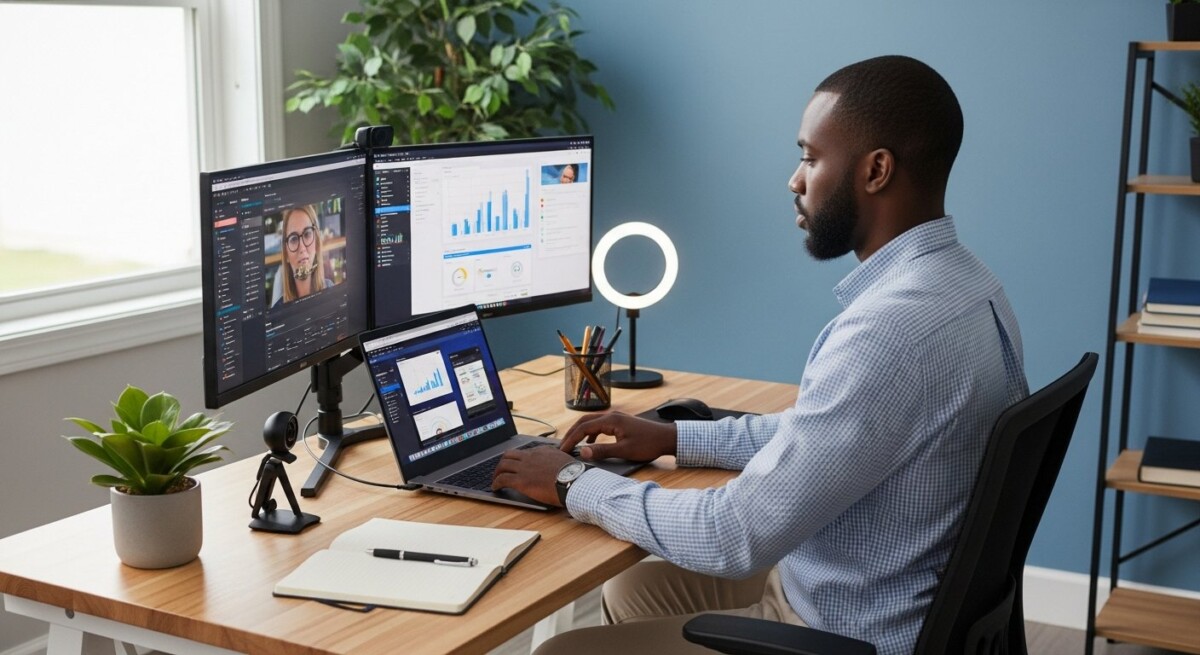
Your display is your primary window into the classroom. A screen size of at least 13 inches is recommended for comfortable reading and multitasking. Resolution matters too: 1920×1080 (Full HD) provides clear text and sharp images, which reduces eye strain during long study sessions. If you are using an external monitor, the same resolution standard applies. Some students benefit from a dual-monitor setup, using one screen for the lecture and the other for note-taking or research. This is not a requirement, but it can improve productivity significantly.
A webcam is essential for synchronous classes, group projects, and proctored exams. Most laptops come with built-in webcams, but the quality varies widely. A 720p webcam is the minimum standard, but 1080p offers much better clarity. If your built-in webcam is poor, an external USB webcam is an affordable upgrade. Position the camera at eye level and ensure your face is well-lit. Good audio is equally important. Built-in microphones often pick up background noise and echo. A simple USB headset with a noise-canceling microphone can transform your virtual classroom experience. It keeps your voice clear and prevents feedback loops that annoy instructors and classmates.
Internet connectivity is the backbone of remote learning. While we are discussing hardware, it is worth noting that your computer is only as good as your internet connection. A stable broadband connection with at least 10 Mbps download speed is recommended for video calls and streaming lectures. For HD video, 25 Mbps is better. Wired Ethernet connections are more reliable than Wi-Fi, but a strong Wi-Fi 5 or Wi-Fi 6 router works well for most students. If your internet is unreliable, consider a backup plan such as a mobile hotspot or a local library with public computers. Some universities also offer loaner devices or internet subsidies for students in need.
Recommended Minimum Specs by Program Type
Different academic programs place different demands on your computer. Understanding these variations helps you avoid overpaying for power you do not need or underinvesting in a machine that cannot keep up. Below is a breakdown of recommended specifications for common degree categories.
General Liberal Arts and Business Programs: These programs primarily involve reading, writing, research, and occasional video presentations. An Intel Core i3 or AMD Ryzen 3 processor, 8 GB RAM, and a 256 GB SSD are sufficient. A 13-inch display with 1080p resolution works well. You will mainly use web browsers, office suites, and basic productivity tools. Most modern laptops in the $400 to $600 range meet these requirements.
STEM and Data-Intensive Programs: If you are studying computer science, engineering, data science, or mathematics, you need more horsepower. Look for an Intel Core i5 or AMD Ryzen 5 processor, 16 GB RAM, and a 512 GB SSD. Some programs require running virtual machines, coding environments like Visual Studio or PyCharm, or statistical software like MATLAB. Dedicated graphics are not always necessary, but integrated GPUs from Intel Iris Xe or AMD Radeon Graphics can handle light 3D modeling. Expect to spend $700 to $1,000 for a capable machine.
Creative and Design Programs: Students in graphic design, video production, animation, or architecture need powerful hardware. An Intel Core i7 or AMD Ryzen 7 processor, 16 GB to 32 GB RAM, a dedicated graphics card (NVIDIA GeForce or AMD Radeon), and a 512 GB or larger SSD are recommended. A color-accurate display with at least 1080p resolution is important for visual work. These machines typically cost $1,000 or more. Consider a desktop workstation if you need maximum performance for rendering or 3D modeling.
Healthcare and Nursing Programs: Many healthcare programs use simulation software, virtual patient interactions, and proctored exams. An Intel Core i5 or AMD Ryzen 5 processor, 8 GB to 16 GB RAM, and a 256 GB SSD are adequate. Some programs have specific requirements for webcam quality and microphone clarity for telehealth simulations. A reliable internet connection is critical because many assessments are time-sensitive. Chromebooks are often not recommended for nursing programs due to software compatibility issues.
Frequently Asked Questions
Can I use a Chromebook for remote learning? Chromebooks work well for programs that rely entirely on web-based tools and do not require specialized software. However, many universities use proctoring software or virtual lab environments that are incompatible with Chrome OS. Always check with your school’s IT department before committing to a Chromebook. If you choose one, look for models with at least 8 GB RAM and an Intel or AMD processor rather than ARM-based chips.
Is a tablet enough for online classes? Tablets like the iPad or Samsung Galaxy Tab can supplement a laptop but are rarely sufficient as a primary device. Typing long papers, running desktop software, and multitasking are much easier on a laptop. If you already own a tablet, use it for reading and note-taking, but plan to have a laptop for exams and major assignments.
How often should I upgrade my computer? A well-maintained laptop with the minimum computer specs needed for remote learning should last three to five years. After that, performance may degrade due to aging batteries, slower processors, and incompatibility with new software. If your computer is more than four years old and struggles with basic tasks, it is time to consider an upgrade.
Do I need a dedicated graphics card? Not for standard coursework. Integrated graphics built into modern processors are sufficient for video playback, presentations, and most educational applications. Only programs involving 3D modeling, video editing, or complex simulations require a dedicated GPU.
What if I cannot afford a new computer? Many universities offer laptop loaner programs, technology grants, or discounts through partnerships with manufacturers. Check with your school’s financial aid office or student services department. Some community colleges also provide refurbished devices at low cost. Additionally, consider buying a slightly used business-class laptop from a reputable refurbisher. These machines are often more durable and better built than new budget models.
Making the Right Investment for Your Education
Choosing the right computer for remote learning is a balance between your budget and the demands of your program. The minimum computer specs needed for remote learning are not as intimidating as they might seem. A mid-range laptop from a major manufacturer like Dell, Lenovo, HP, or Acer will serve most students well for several years. Prioritize sufficient RAM, an SSD, and a good webcam and microphone. These components directly affect your daily experience more than the processor speed or brand name. Remember that your computer is a tool for achieving your educational goals. It does not need to be the latest model or the most expensive one. It needs to be reliable, compatible with your school’s platform, and comfortable for you to use for hours at a time. By following the guidelines in this article, you can confidently select a device that supports your success without breaking the bank. For those looking to compare programs and find accredited online degrees that fit their career goals, CollegeDegree.school offers resources to help you explore your options and make informed decisions about your educational journey.